Troubleshooting CC-2D Barcode Reader
Properly configured CC-2D should work with CC Capture as a Plug'n'Play device. When connected to the computer and launch CC Capture Barcode reader's icon should turn green.
Troubleshooting CC-2D
There are three critical points to be checked if any problem with CC-2D connected to the CC Capture:
- CC-2D has to be plugged into a USB socket - the required current is 150 mA!
- The device has to be visible in your system
- CC-2D should be in HID mode
Plug into the USB socket
The properly connected device will produce internal sound - tritone beep and LED on the top should be solid green. Take into account that the device is powered from the USB - a minimal current is 150 mA. Too many devices on a USB bus can be a problem - in this case, you may fix potential issues using an externally powered USB hub.
USB communication modes
The barcode reader can be set to work in one of three possible modes:
- USB HID-POS (recommended, only Plag'n'Play)
- Virtual Serial Port • CDC (requires manual configuration)
- Keyboard emulation (for CC Capture useless)
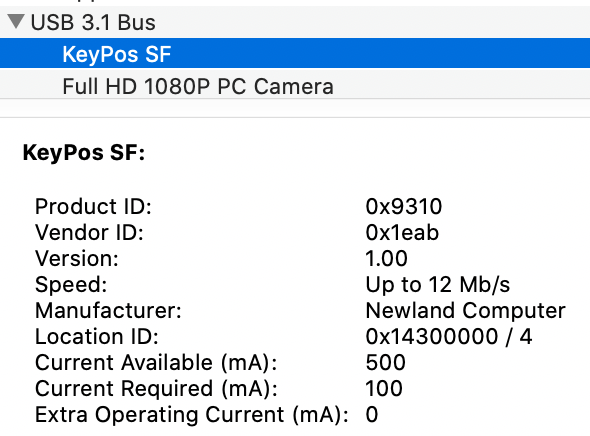
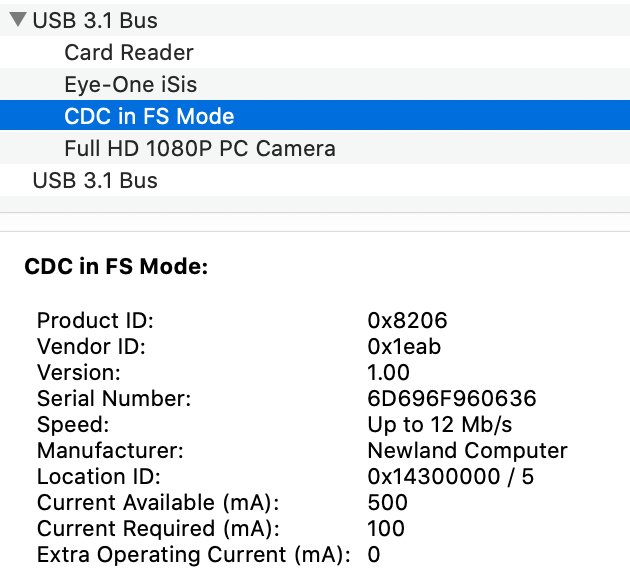
Checking the operating system — Mac Apple computer
Go to: About This Mac > System Report > USB section
| USB HID-POS |
Virtual Serial Port • CDC |
|
 |
 |
|
| recommended | possible but NOT recommended | |
| Plug'n'Play | Manual configuration |
If your current configuration is not HID-POS you may change it (description below)
Checking the operating system — PC with Windows 10 >
Go to Device Manager
| USB HID-POS |
Virtual Serial Port • CDC |
|
| recommended | possible but NOT recommended | |
| Plug'n'Play | Manual configuration |
Switching CC-2D to HID mode
For Plug'n'Play USB HID-POS mode is required. To switch CC-2D to this mode scan the following barcode:
 |
|
USB HID-POS |
If it doesn't help before switching USB communication mode Factory Default Reset may be required.
To reset scan the following barcode:
 |
| FACTORY RESET |
It is not recommended but possible to use CC-2D in Virtual Serial Port • CDC mode.
To switch scanfollowing code:
 |
| VIRTUAL SERIAL PORT |
Testing ability to read different types of barcodes with CC Capture
Contact ChromaChecker Support
Additional information and Support Form is available for logged users.